CSS Snippets Management
Feature Overview
The Ace Code Editor plugin provides convenient CSS snippets management functionality, allowing you to create, edit, and manage custom styles directly within Obsidian.
Accessing the Snippets Manager
The plugin adds a management entry icon to the leftmost ribbon by default, with the default icon being
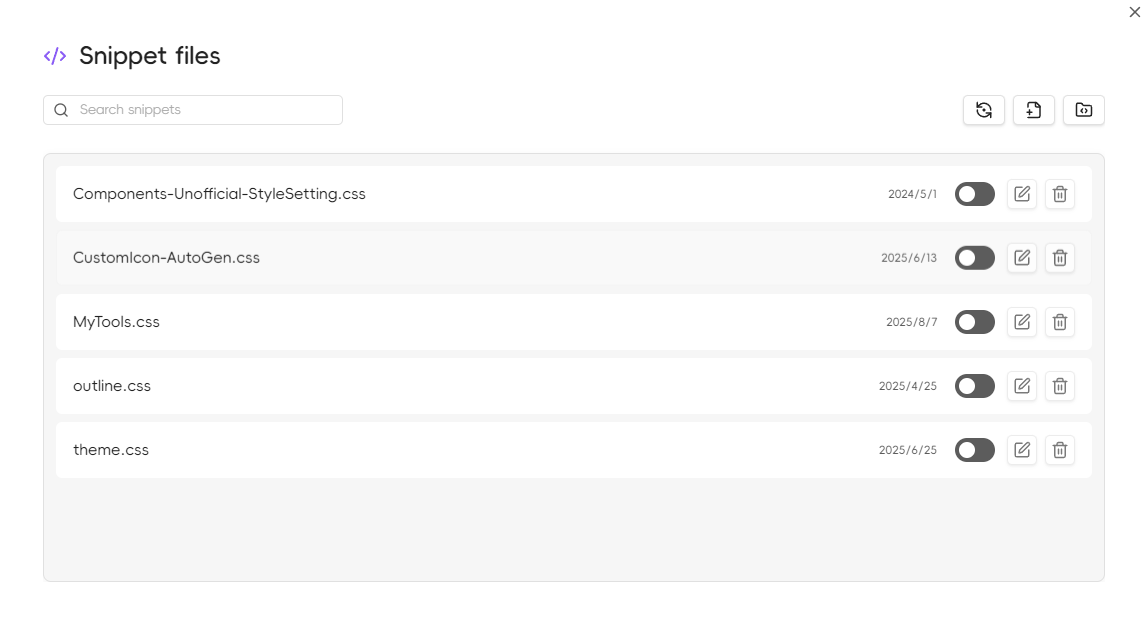
Opening Methods
- Ribbon Icon: Click the code icon in the left ribbon
- Command Palette: Use
Ctrl/Cmd + Pto open the command palette, search for "CSS Snippets Manager" - Hotkey: Can be customized in settings
Main Features
Creating New CSS Snippets
- Click the "New Snippet" button in the manager
- Enter the snippet name
- Write CSS code in the editor
- Save the snippet
Editing Existing Snippets
- Select the snippet to edit from the snippet list
- Click the edit button
- Modify the code in the Ace editor
- Save changes
Enable/Disable Snippets
- Use the toggle button next to snippets to quickly enable or disable them
- Disabled snippets will not be applied to the Obsidian interface
Deleting Snippets
- Select the snippet to delete
- Click the delete button
- Confirm the deletion
Editor Features
CSS Syntax Support
- Syntax Highlighting: Complete CSS syntax highlighting
- Code Completion: Intelligent completion for CSS properties and values
Live Preview
- Style changes are applied immediately after saving
- No need to restart Obsidian
- Supports hot reload
Best Practices
Snippet Naming
- Use descriptive names like "dark-theme-enhancement" or "custom-callouts"
- Avoid special characters and spaces
- Recommend using lowercase letters and hyphens
Code Organization
css
/* Add comments to explain snippets */
/* Custom callout styles */

.callout[data-callout="custom"] {
    --callout-color: 68, 138, 255;
    --callout-icon: lucide-star;
}

/* Custom font settings */
.markdown-preview-view {
    font-family: "JetBrains Mono", monospace;
}Performance Optimization
- Avoid overly complex selectors
- Use CSS variables appropriately
- Regularly clean up unused snippets
Troubleshooting
Common Issues
Snippet Not Working
- Check if the snippet is enabled
- Confirm CSS syntax is correct
- Verify selectors match target elements
Editor Won't Open
- Restart Obsidian
- Check if the plugin is properly enabled
- Open Developer Tools with
Ctrl+Shift+I(orCmd+Option+Ion Mac), then check the Console tab for error messages
Style Conflicts
- Use more specific selectors
- Add
!importantdeclarations (use cautiously) - Adjust snippet loading order